JAMB CAPS Portal 2026: How to Check, Accept and Confirm Admission Status
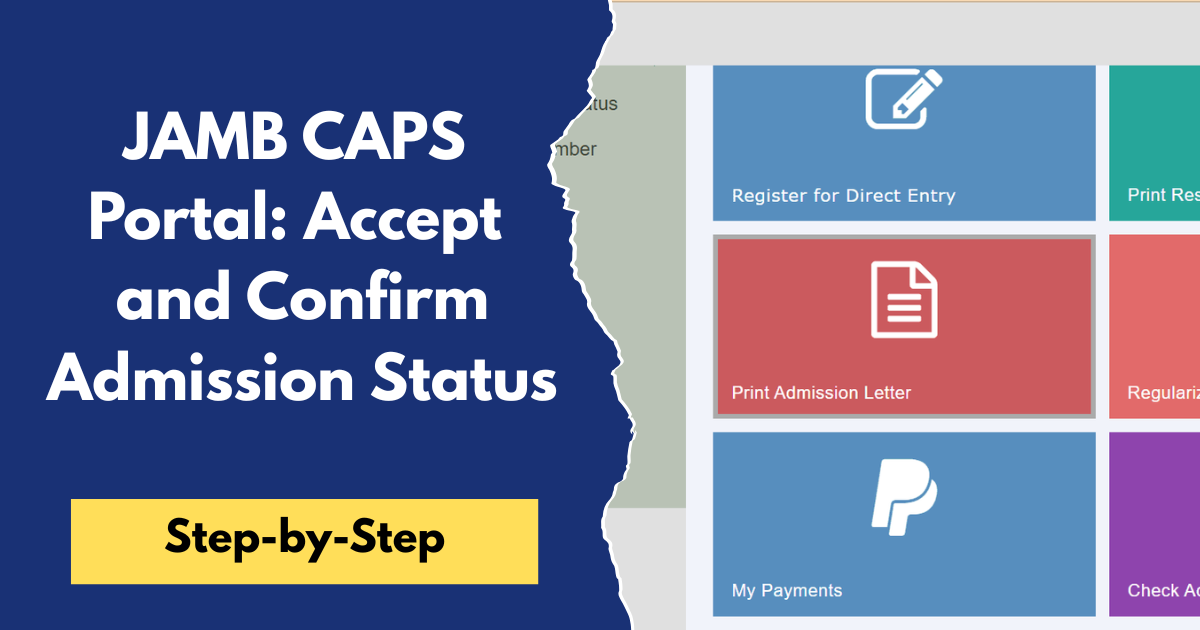
The JAMB CAPS Portal is an online platform developed by the Joint Admissions and Matriculation Board (JAMB) to manage and process admissions into universities, polytechnics, colleges of education, and other tertiary institutions in Nigeria. Through the portal, candidates can check their admission status, accept or reject an admission offer, approve or decline a change of course, monitor their admission progress, confirm their admission details, and access other important admission services.
Below in this post, we'll show you how to use the JAMB CAPS Portal to check your admission status, accept or reject an admission offer, approve a course transfer, confirm your admission details, and carry out other important admission-related tasks. We've explained each process in simple, easy-to-follow steps, so be sure to read carefully to avoid mistakes during your admission process.
How to Check Your Admission Status on the JAMB CAPS Portal
One of the most commonly used features on the JAMB CAPS Portal is the Admission Status page. This feature allows candidates to find out whether they have been offered admission by their preferred institution. Since schools release admissions at different times, it's advisable to check your admission status regularly throughout the admission exercise. Follow the steps below to check your admission status on the JAMB CAPS Portal:-
- Visit the JAMB e-Facility Portal and log in using your registered email address and password.
- Scroll down and click "Check Admission Status."
- Select your examination year.
- Enter your JAMB Registration Number if required.
- Click "Access My CAPS."
- Once the CAPS dashboard opens, click "Admission Status."
- Your current admission status will be displayed on the screen.
If you've been offered admission, you'll see your institution, course, and the option to Accept or Reject the offer. If no admission has been offered yet, you may see messages such as "Not Admitted" or "Admission in Progress." In that case, continue checking the portal regularly, as your status may change once your institution releases more admission lists.
How to Accept Admission on the JAMB CAPS Portal
After confirming that you've been offered admission, the next step is to accept the offer on the JAMB CAPS Portal. Accepting your admission lets JAMB know that you have agreed to the offer from your institution. Until you do this, you may not be able to proceed with other important admission processes, such as printing your JAMB Admission Letter or completing your school's registration. Follow the steps below to accept your admission on the JAMB CAPS Portal:-
- Log in to the JAMB e-Facility Portal using your registered email address and password.
- Click "Check Admission Status."
- Select your examination year and click "Access My CAPS."
- On the CAPS dashboard, click "Admission Status."
- If you've been offered admission, your admission details will be displayed.
- Click the "Accept Admission" button.
- A confirmation message will appear. Click "OK" to complete the process.
- Wait for the portal to confirm that your admission has been successfully accepted.
After accepting your admission, you can proceed to print your JAMB Admission Letter when it becomes available and follow your institution's instructions for clearance, acceptance fee payment, and registration.
We hope this guide has helped you understand how to use the JAMB CAPS Portal with ease. If you found this article helpful, please share it with other JAMB candidates who may need it. If you have any questions or need further clarification, leave a comment below, and we'll be happy to assist you.
Also, don't forget to check out our website for more JAMB guides, Post-UTME updates, admission news, and other helpful education resources to keep you informed throughout the 2026 admission exercise.